Printing on macOS
SCS Computing Facilities (SCSCF) provides support for public printing for our three supported desktop computing platforms (Windows, macOS and Linux).
There are two methods of configuring public printers on macOS:
- JAMF: SCSCF-supported Macs that are registered for software support can use our 'Self Service Software' platform to install available printers automatically.
- Manual Configuration: For unsupported Macs, we provide manual configuration instructions. This method requires that necessary drivers be installed. You can download the drivers from the Konica-Minolta website if using this method.
Add an SCS printer using Self Service Software (JAMF)
Supported SCSCF Macs feature 'Self Service Software', an application which allows convenient automatic configuration of SCS printers.
-
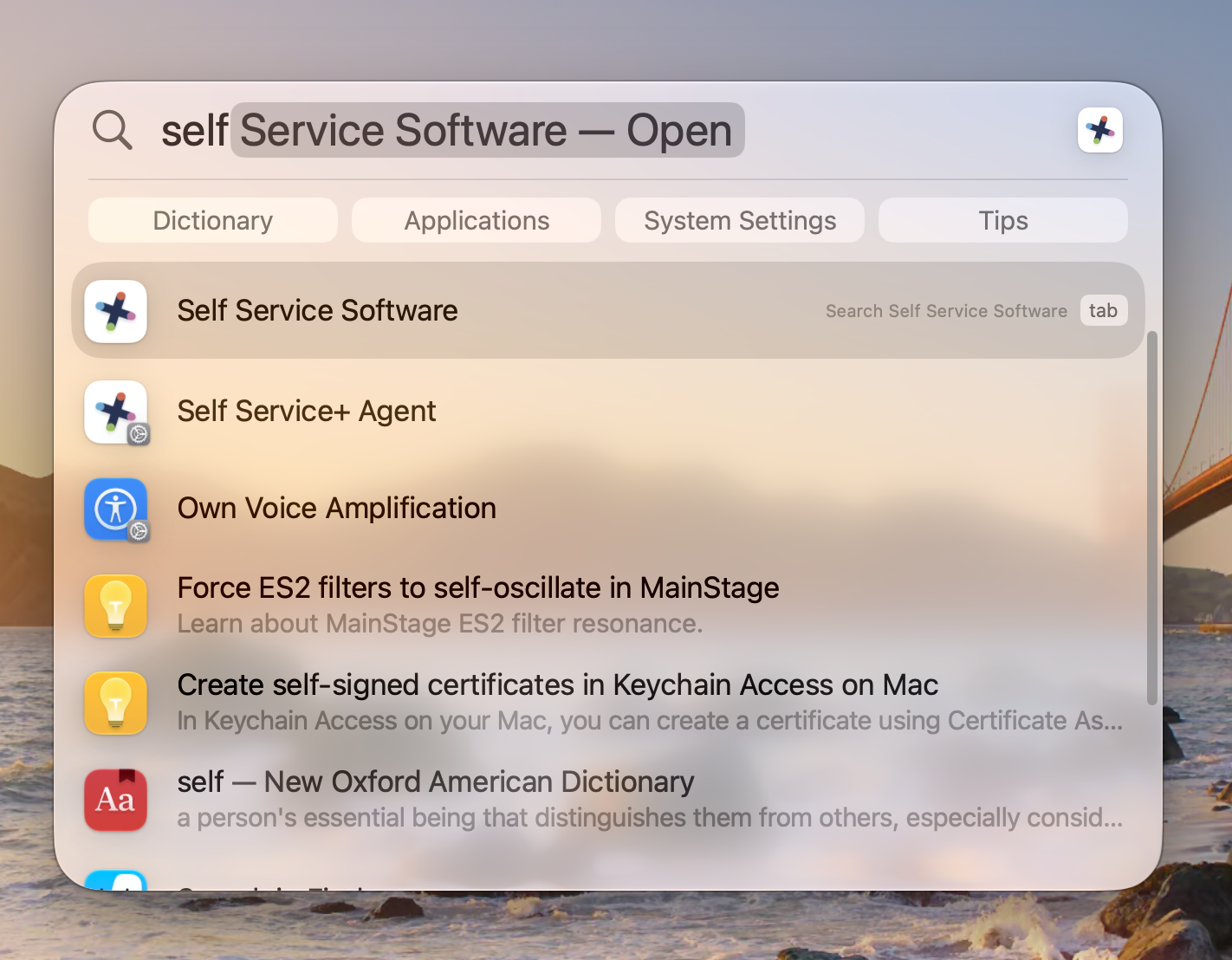
Locate and open 'Self Service Software' (search via Spotlight or Apps on the Dock)
-
From 'Self Service Software' window
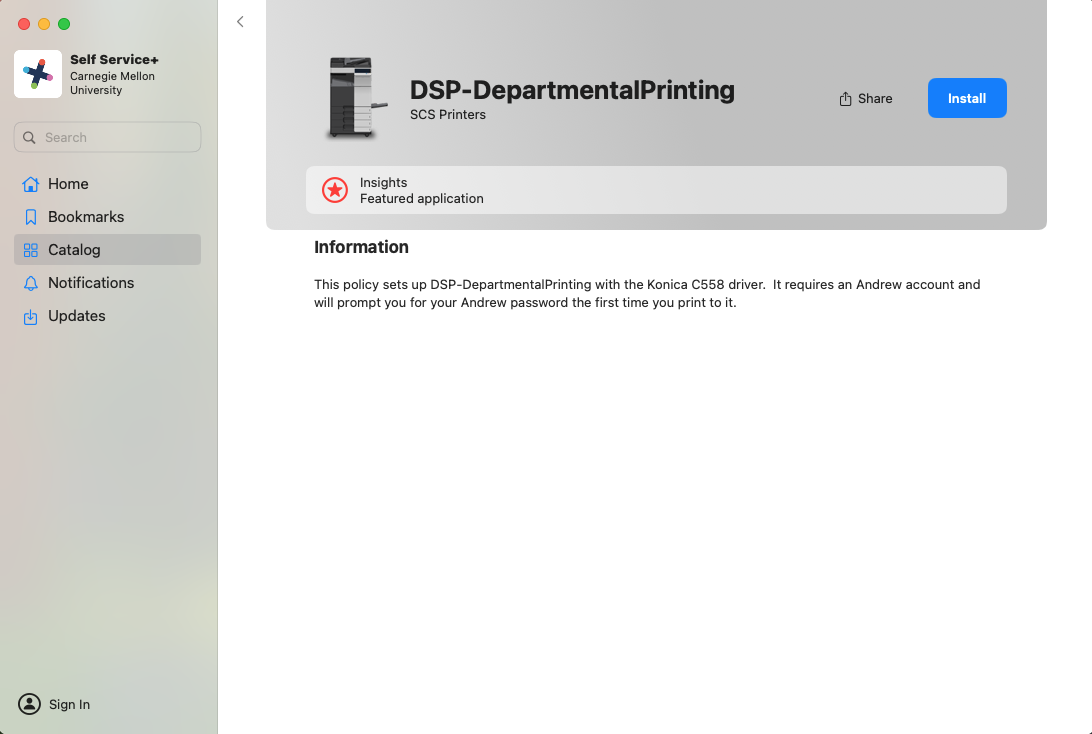
Public Printing: Click DSP-DepartmentalPrinting policy
Private Printing: Click on the search field and enter the name of the printer then click Install beside the printer you want.

-
Click 'Install' under DSP-DepartmentalPrinting. When the install is finished it will briefly say 'Done' then 'Reinstall'.
You have installed the printer successfully.
Please note: for public printing you want DSP-DepartmentalPrinting.
For private printers select the policy matching your private printer name. If you do not know the name of your private printer, submit a ticket and we would be happy to assist you.
-
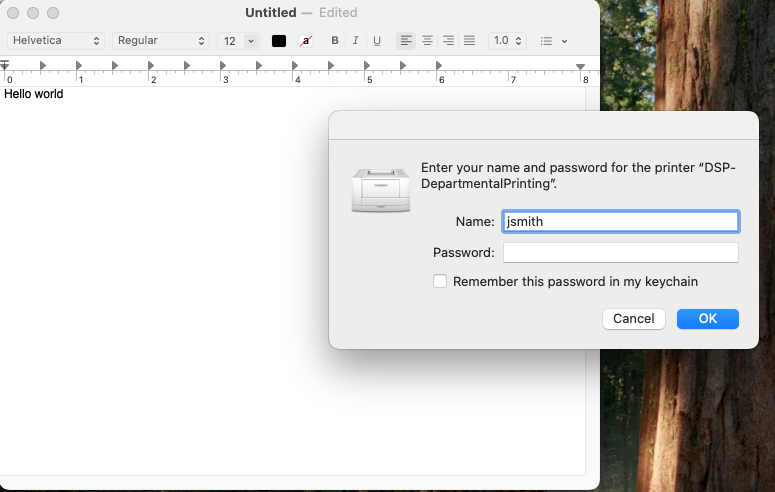
When you goto print for the first time you'll see an authentication prompt that requires your Andrew ID and password.
Add an SCS printer manually (unsupported Macs)
If your Mac is not enrolled under SCSCF Software support, or is not enrolled in the JAMF Software Server you may add printers by following the steps below. If adding a private printer, you must know the name of the printer. Please submit a ticket, if you do not know the private printer name.
Download Konica Drivers (for non-JAMF manual configuration only)
-
After downloading the Konica Driver Package ZIP file, uncompress and install the package. Version 11.10.1A for Sonoma is still the latest as of October 2026 and still works on macOS 27 Golden Gate.
Please Note: The package file will be located where you extracted the zip file:
(Saved Location):
Downloads/Driver/OS_11_x/Letter/C759_C658_C368_C287_C3851_11.pkg
-
Download Mobility Print from the PaperCut Server. Follow the instructions on the webpage to install it.
The download is located in your Downloads folder:
e.g. pc-mobility-print-printer-setup-1.0.836[dsp-printing.andrew.cmu.edu].dmg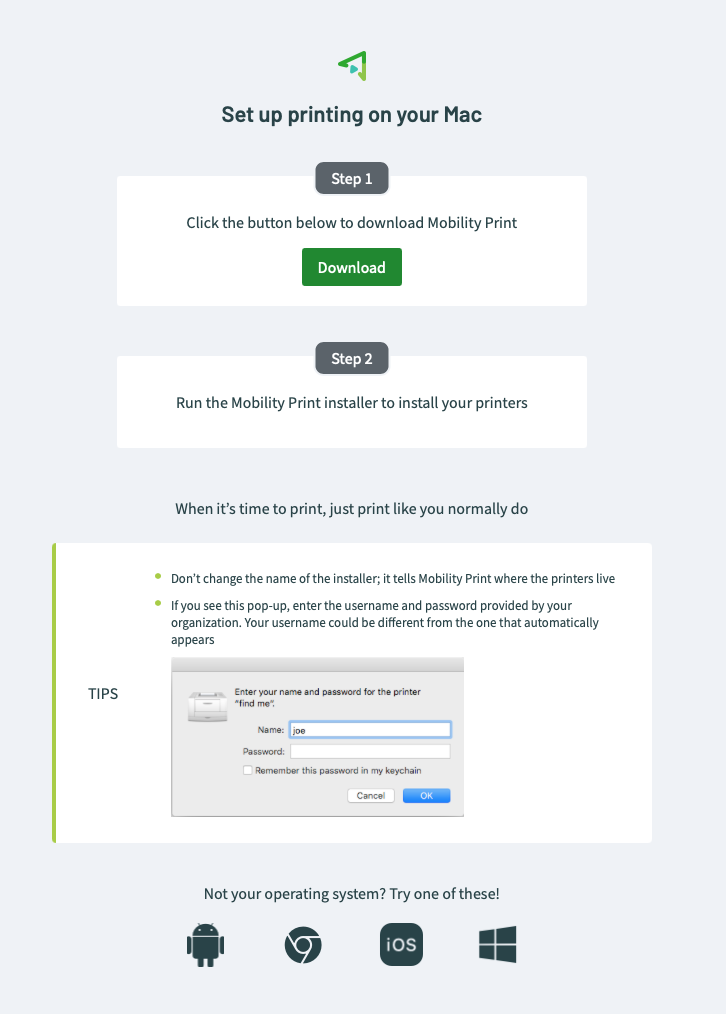
-
From Apps on your Dock open Terminal
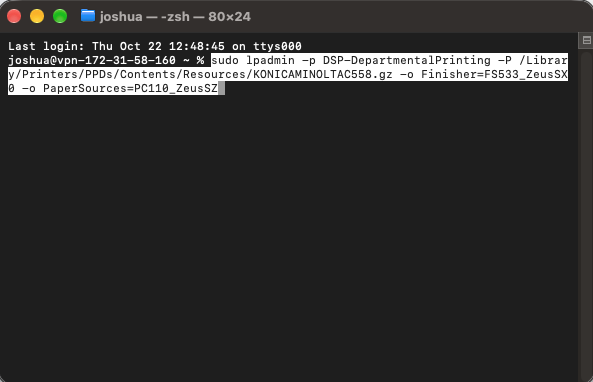
Copy and paste the following into the terminal window:
sudo lpadmin -p DSP-DepartmentalPrinting -P /Library/Printers/PPDs/Contents/Resources/KONICAMINOLTAC558.gz -o Finisher=FS533_ZeusSX0 -o PaperSources=PC110_ZeusSZPress [Return]
Enter your local administrator password when prompted then press [Return] again.
Note: Ignore the warning about depreciated printers.
-
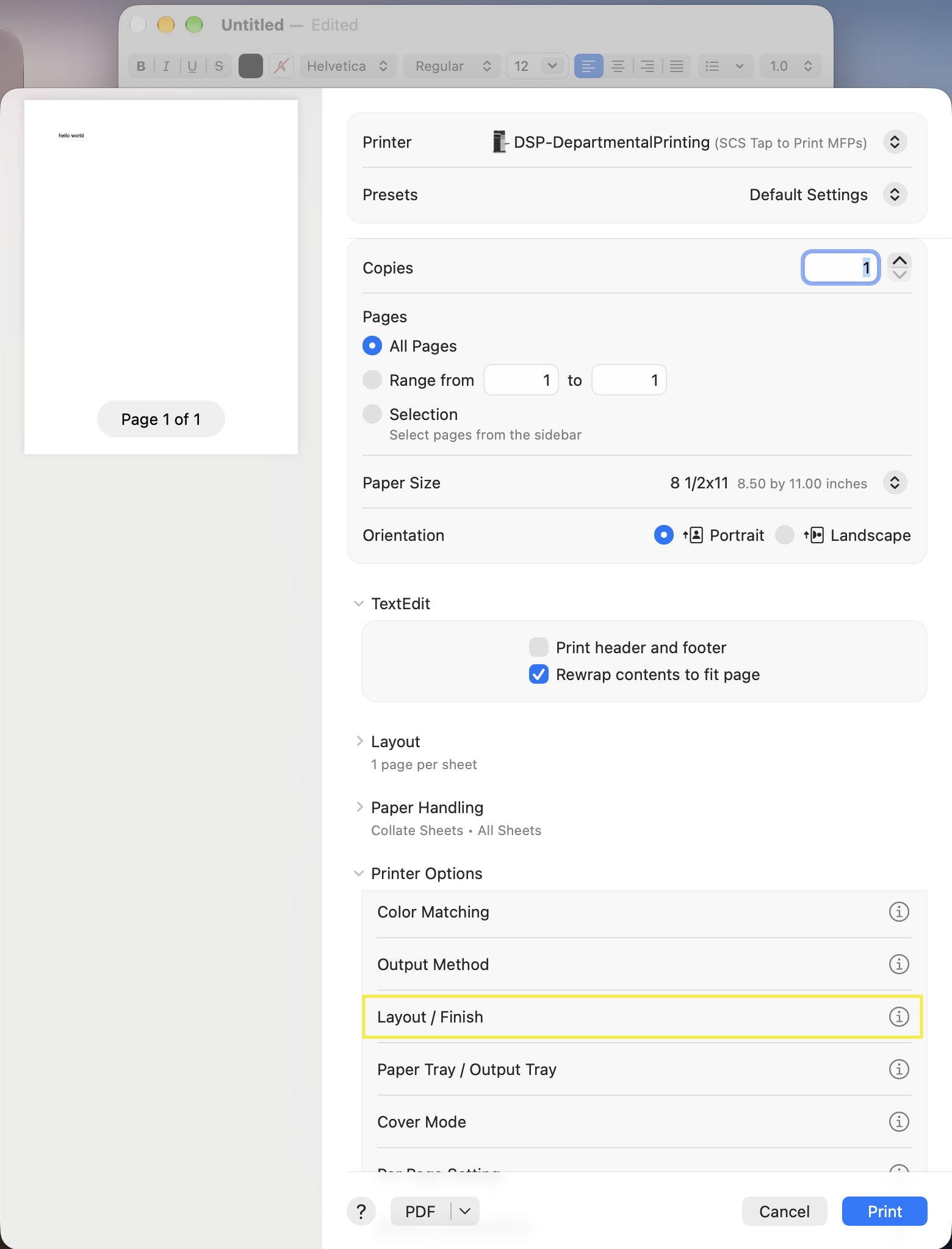
For finishing options (including stapling and two sided printing), when printing check the following settings:
In the print window:
Click to expand 'Printer Options'
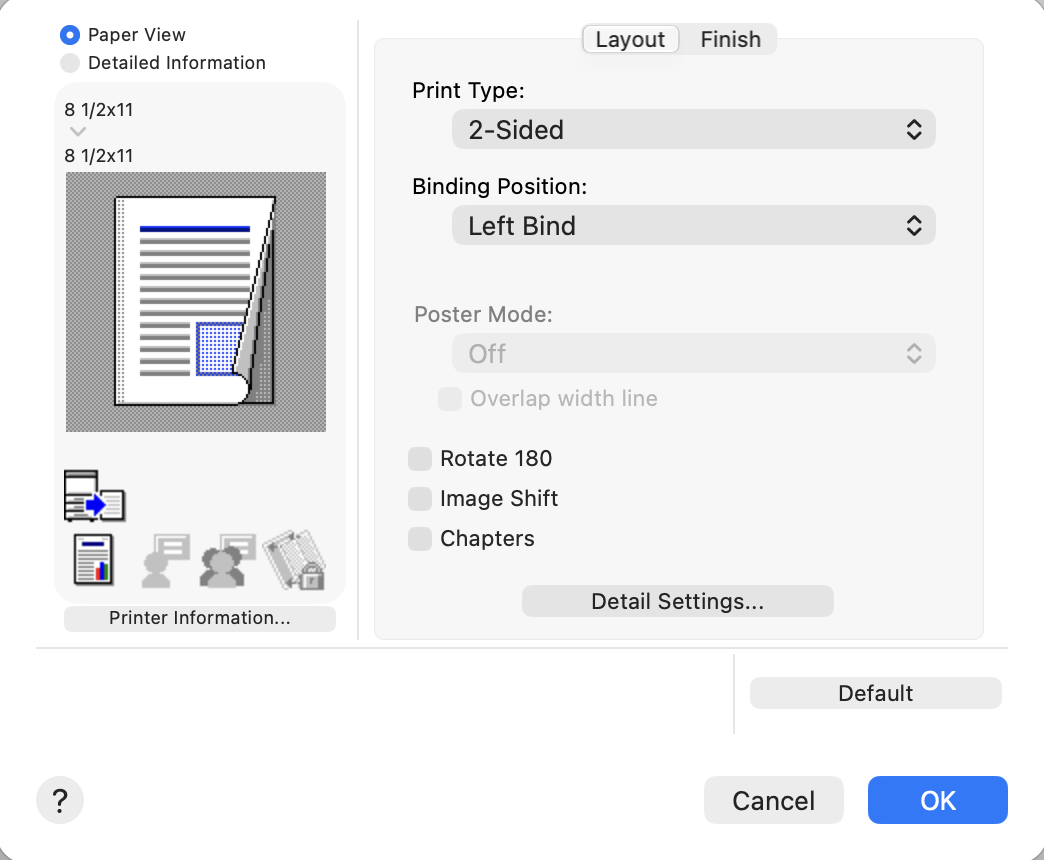
Click the i icon to the right of Layout / Finish
Print Type: 2-Sided
Binding Position: Left Bind
Click Ok then click Print.
Note: Private printers will not present these options.
Need Help?
Was this page helpful?
Use this box to give us feedback on this webpage and its content. If you need a response, please include your Andrew ID.
Need technical support? Submit a ticket